
Enabling WebAssembly
If you open ActiVote in your browser and see nothing but the ActiVote logo, your browser may not be allowing WebAssembly, which is what the web app is built with. Below are the steps for each browser, and once WebAssembly is allowed you can go straight back to myActiVote.com.

Firefox
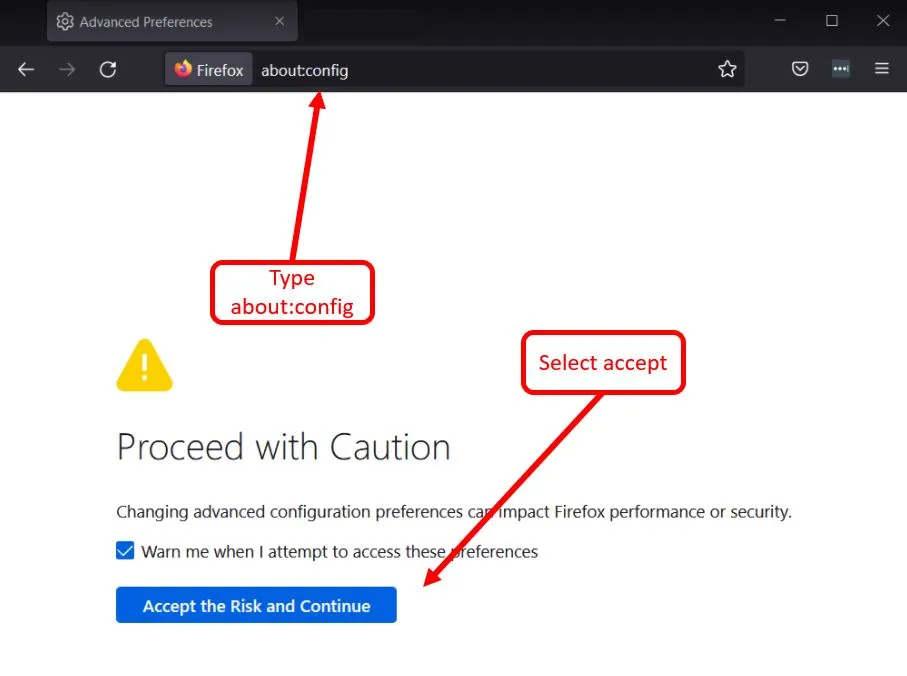
Type about:config in the address bar, then accept to continue to the settings.
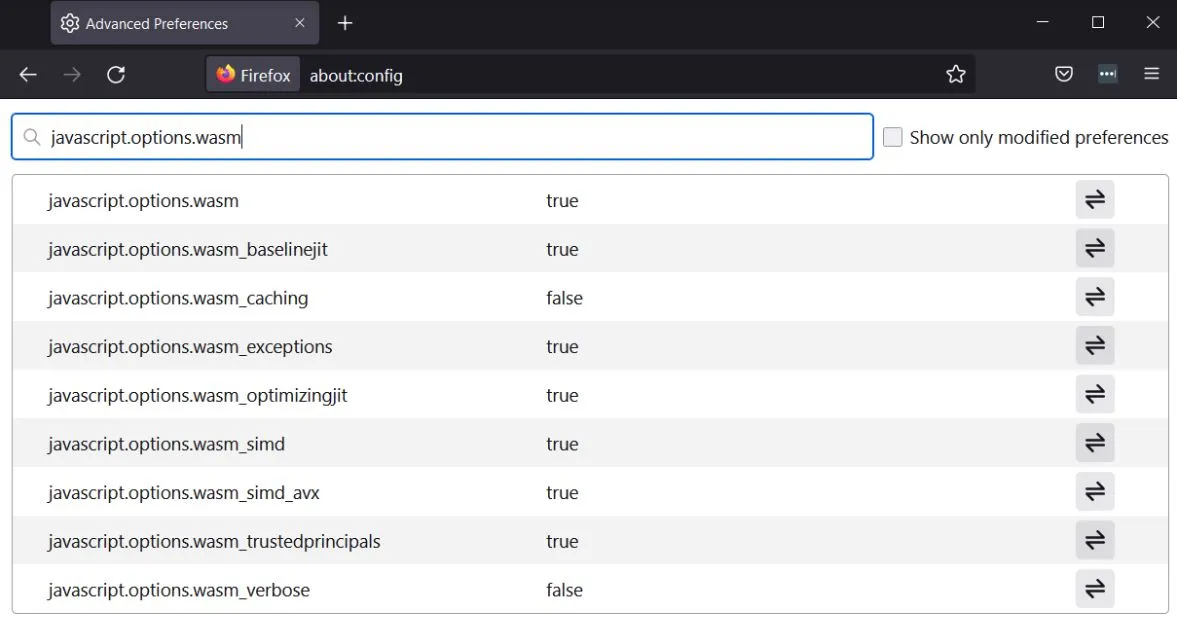
Search for wasm in the search bar at the top.
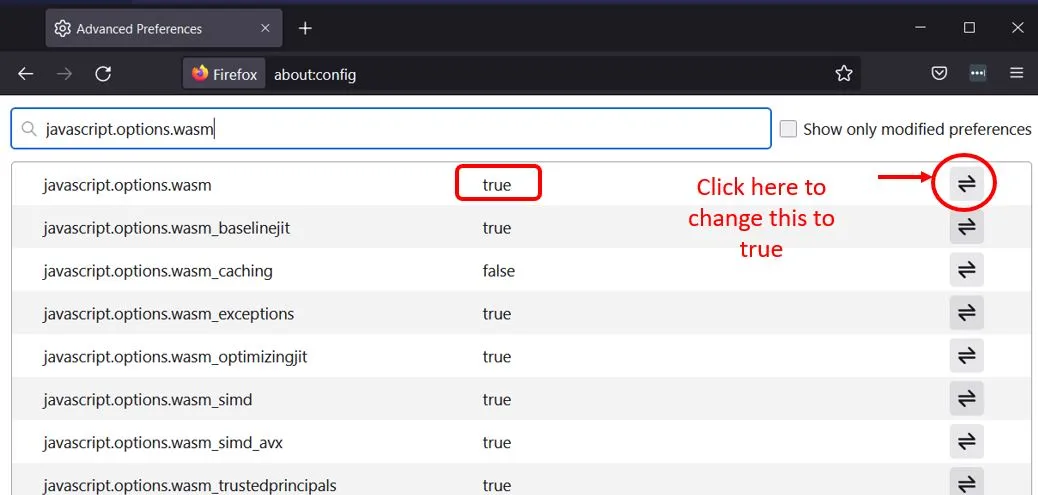
Click the toggle on the right until javascript.options.wasm reads true.
Edge — the quick way
On the browser bar you will see “Added security” to the left of the address. Click “Enhance security for this site”.
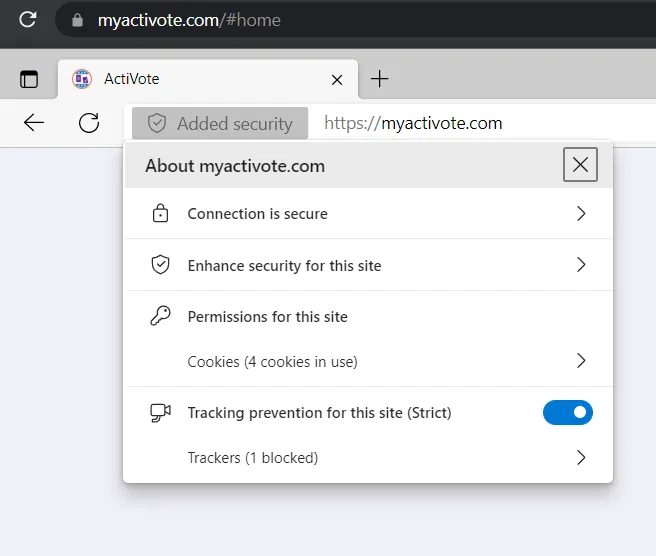
If “Use enhanced security for this site” is switched on, carry on to the next step.
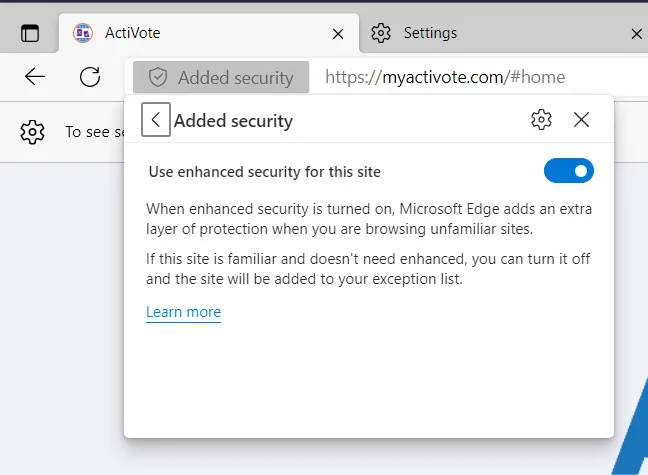
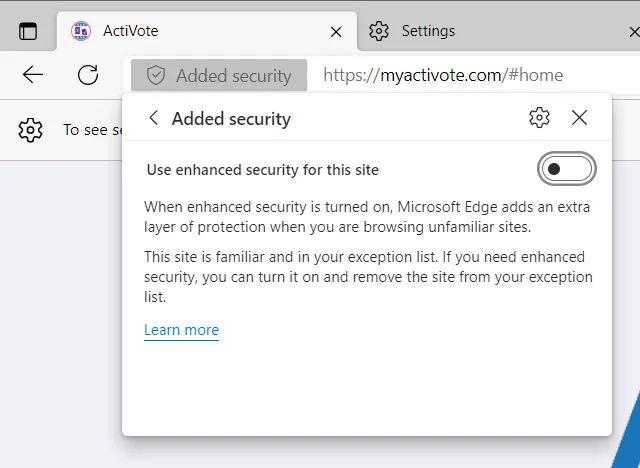
Switch “Use enhanced security for this site” off.
Edge — through the settings
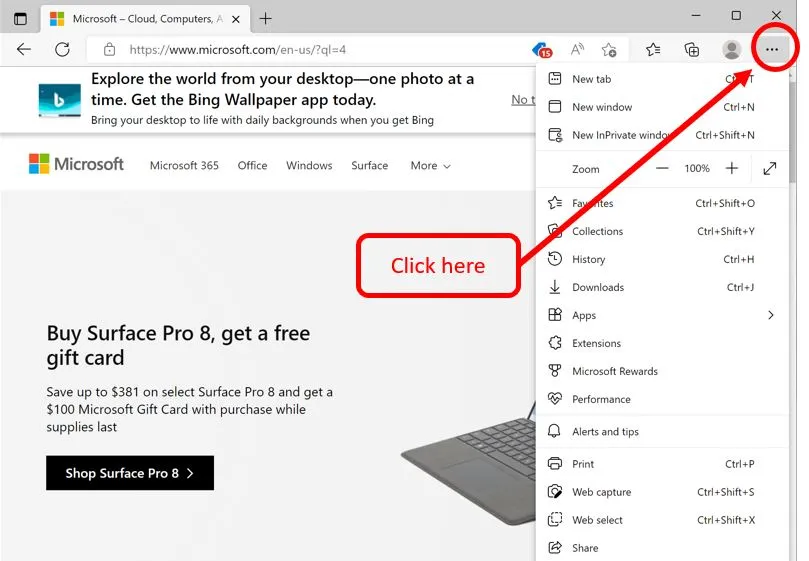
Click the three dots in the top right corner of your browser and choose Settings.
Go to “Privacy, search, and services”, then scroll down to “Enhance your security on the web”.
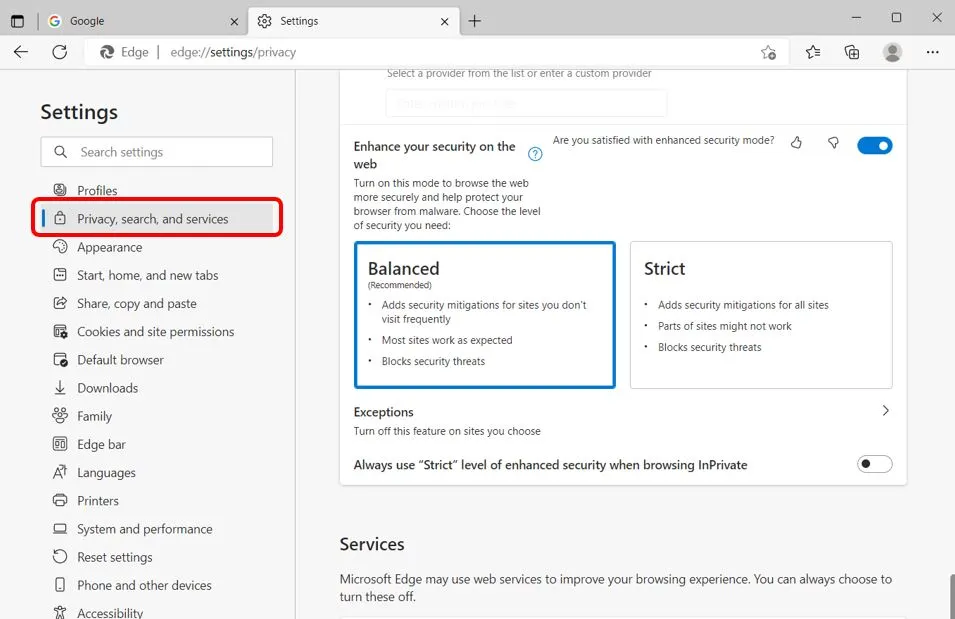
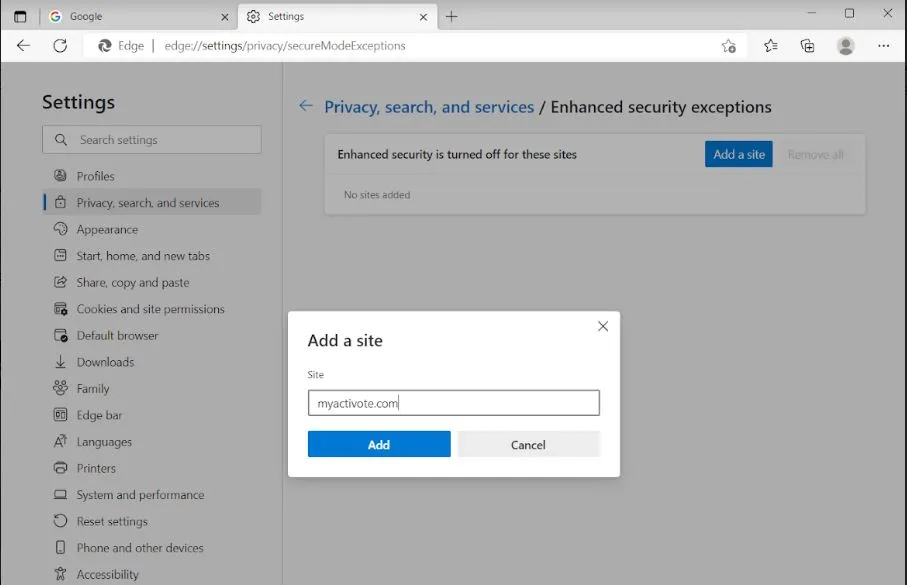
If the slider is off, WebAssembly is already enabled. If it is on, with either “Balanced” or “Strict” selected, add an exception for ActiVote: click Exceptions, just below those buttons, and add myactivote.com.
Still stuck?
If the logo is still all you see, the other thing browsers sometimes block is JavaScript — those steps are here. And if neither does it, tell us which browser and version you are on and we will work it out with you.